
Microsoft 365 Security Checklist for Small Business Owners
by Jon Lober | NOC Technology | April 3, 2026
Essential steps to protect your data, users, and business.
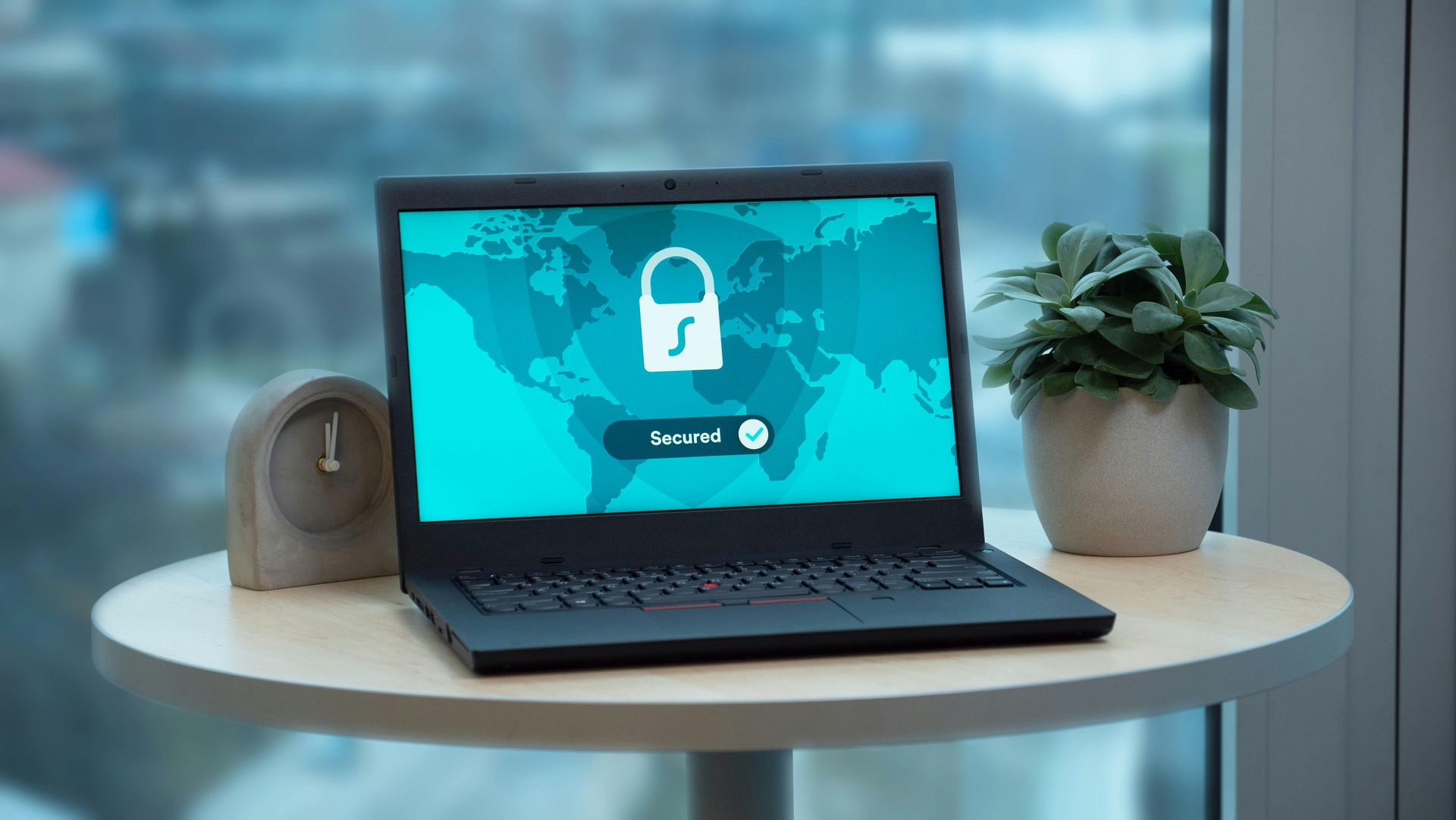
Your CEO's email is compromised. The attacker is sending invoices to your customers from her account, complete with her signature and a slightly modified bank routing number. Your accounts receivable team doesn't notice for three days. By the time you realize what happened, two customers have wired $47,000 to someone in Eastern Europe. This isn't hypothetical. We've helped Missouri businesses recover from exactly this scenario.
Business email compromise is now the most expensive form of cybercrime, and Microsoft 365 accounts are the primary target. The good news is that most of these attacks are preventable with settings that are already available in your Microsoft 365 subscription. You just need to turn them on.
What Microsoft Gives You vs. What You Need to Add
Microsoft 365 includes a solid baseline of security features, but many of them are disabled by default or require configuration. Understanding what you already have (and what you're leaving on the table) is the first step.
Every Microsoft 365 Business subscription includes basic threat protection, spam filtering, and data encryption in transit. Microsoft Defender (formerly Office 365 ATP) provides some protection against phishing and malware in email. You also get audit logging, which becomes critical when you're trying to figure out what happened after an incident.
What's missing from the default configuration? Multi-factor authentication isn't enforced. Security defaults aren't turned on for older tenants. Mailbox forwarding rules (a favorite tool of attackers) aren't blocked. Legacy authentication protocols that bypass MFA entirely are still enabled. External email sharing settings are often wide open.
The baseline matters, but configuration matters more. A default Microsoft 365 tenant is like a house with good locks, but all the windows left open. Most St. Louis businesses we work with have at least three or four critical settings misconfigured when we first assess their environment.
Multi-Factor Authentication: Why It's Non-Negotiable
MFA is the single most effective security control you can implement. Microsoft's own data shows that MFA blocks 99.9% of automated account compromise attacks. If you do nothing else on this list, do this.
Multi-factor authentication requires users to prove their identity with something they know (password) and something they have (phone, authenticator app, or hardware key). Even if an attacker steals a password through phishing or a data breach, they can't access the account without that second factor.
Here's our guide on how to enable MFA in Microsoft 365: Setting up MFA in Microsoft 365
The implementation matters as much as the decision to enable MFA. Roll it out in phases rather than flipping the switch for everyone at once. Start with administrators and finance staff (high-value targets), then expand to all users over two to three weeks. Give people time to set up their authenticator apps and understand what's changing. The Microsoft Authenticator app is free and works well, but Google Authenticator and other TOTP apps are equally valid.
One critical note: MFA is only effective if you also disable legacy authentication protocols. Older protocols like POP3, IMAP, and SMTP AUTH don't support MFA and create a backdoor around your security. Block them in your conditional access policies or tenant settings.
Password Management and Strong Authentication Practices
Passwords remain the weakest link in most security setups, not because they're inherently bad, but because humans are bad at managing them. The average employee reuses passwords across multiple services, which means a breach at some random website can compromise your business systems.
Microsoft 365 includes Azure AD Password Protection, which prevents users from choosing common or easily guessed passwords. Enable it. You can also create custom banned password lists that include your company name, products, and other predictable choices. This stops people from using "CompanyName2026!" as their password.
Password expiration policies have fallen out of favor in security circles. Forcing frequent password changes leads to predictable patterns (Winter2026! becomes Spring2026!) and increases help desk calls. NIST now recommends long, complex passwords changed only when compromise is suspected. Consider setting your policy to 180 days or even removing expiration entirely if you have strong MFA in place.
For privileged accounts (admins, finance, HR), implement passwordless authentication where possible. Windows Hello for Business, FIDO2 security keys, and the Microsoft Authenticator app's passwordless option all eliminate passwords entirely for sign-in. This is the direction authentication is heading, and you can start moving there today.
A password manager is essential for your team. Individual users should use one for personal accounts, and you might consider a business password manager for shared credentials. This removes the temptation to reuse passwords and makes strong, unique passwords practical.
Email Security and Threat Detection Setup
Email is where most attacks begin. Phishing, business email compromise, and malware all commonly arrive through the inbox. Microsoft 365 includes several protection features that need to be configured correctly.
Start with Microsoft Defender for Office 365 (included in Business Premium and higher plans). Configure Safe Attachments to detonate suspicious files in a sandbox before delivery. Configure Safe Links to rewrite URLs and check them at click time, catching malicious links that weren't flagged when the email first arrived.
Anti-phishing policies deserve attention. Enable impersonation protection for your executives and finance team. Attackers often register domains that look similar to yours (n0ctechnology.com instead of noctechnology.com) and send emails pretending to be the CEO. Impersonation protection flags these attempts.
Set up external email warnings. When an email comes from outside your organization, display a banner warning users. This simple visual cue helps people pause before clicking links or responding to requests. You can configure this through mail flow rules in Exchange Online.
Block auto-forwarding to external domains. Attackers who compromise an account often set up forwarding rules to exfiltrate email silently. A rule that forwards all email to an external address should never be allowed. Block this in your tenant settings.
Review your audit logs regularly. Microsoft 365 logs sign-in activity, mailbox access, file sharing, and administrative changes. Set up alerts for suspicious activity (sign-ins from unusual locations, multiple failed attempts, new inbox rules created). You don't need to watch logs manually, but you should have alerts configured.
Employee Training: Addressing the Weakest Link
Technology can only do so much. The most sophisticated security tools in the world won't help if an employee gives their password to an attacker over the phone or clicks a link they shouldn't.
Security awareness training doesn't have to be expensive or complicated. What matters is consistency and relevance. Monthly reminders beat annual compliance videos. Real examples from your industry beat generic warnings about Nigerian princes.
Phishing simulations help, but only if you handle them correctly. The goal isn't to catch and shame employees. The goal is to identify who needs additional training and to give everyone practice recognizing suspicious emails. When someone fails a simulation, that's a training opportunity, not a disciplinary event.
Teach your team to verify unusual requests through a different channel. If the CEO emails asking for a wire transfer, call the CEO directly (on a known phone number, not one from the email) to confirm. If a vendor sends new banking details, call them to verify. These simple verification steps stop most business email compromise attacks.
Create a culture where reporting suspicious emails is encouraged, not penalized. You want employees forwarding questionable messages to IT rather than clicking first and hoping nothing bad happens. Make the reporting process easy and thank people who report, even when the email turns out to be legitimate.
Putting It All Together
Microsoft 365 security isn't about buying more tools. It's about configuring the tools you already have. MFA, email protection, and employee awareness cover the vast majority of attack vectors that affect small businesses.
Get started with MFA today! Then work through email security settings and forwarding rules. Train your employees on what to watch for. These aren't expensive projects; they're configuration changes and habit adjustments that dramatically reduce your risk.
If you're not sure where your Microsoft 365 tenant stands, we've published our pricing so you know what an assessment actually costs before you call anyone.
Frequently Asked Questions
Jon Lober is the CEO of NOC Technology, a managed service provider and business technology consultant based in Washington, Missouri and servicing greater St. Louis and beyond. With over 25 years of business management experience and more than 15 in IT, Jon understands both the complexities of both business operations and the technological infrastructure that makes work possible. Jon is a CMMC Registered Practitioner from CyberAB and is passionate about cybersecurity compliance, business continuity, and intelligent automation, all built to support and protect US-based businesses.